Guides
Short how-tos for each part of TutorWrap. Start with the walkthrough, then dip into the part you need.
Walkthrough
TutorWrap in three minutes
What it is, what a tutor does after a lesson, and what the parent gets. Everything below is covered in more detail.
The walkthrough is on its way
A short video of the whole loop, from logging a session to the parent's update. Until then, the guides below cover every step.
01
Add a student and their parents
Every update goes to a parent or guardian, so a student is a name, a subject and at least one person to write to.
- Open Students and choose Add student. Give the student a first name, a subject and, if you like, a year group and curriculum.
- On the student’s page choose Add guardian. Enter the parent’s name, their email or mobile number, and the channel they prefer: email, SMS, WhatsApp, or email and SMS together.
- Set the parent’s timezone if they live somewhere else. A lesson at 4pm for you reads as 5pm for a parent in Brussels, with no conversion on your part.
- Add a second guardian the same way. Each one has their own channel and timezone.
Good to know. Private notes on a student are yours alone. They never appear in any message or on the progress page.
02
Log a session
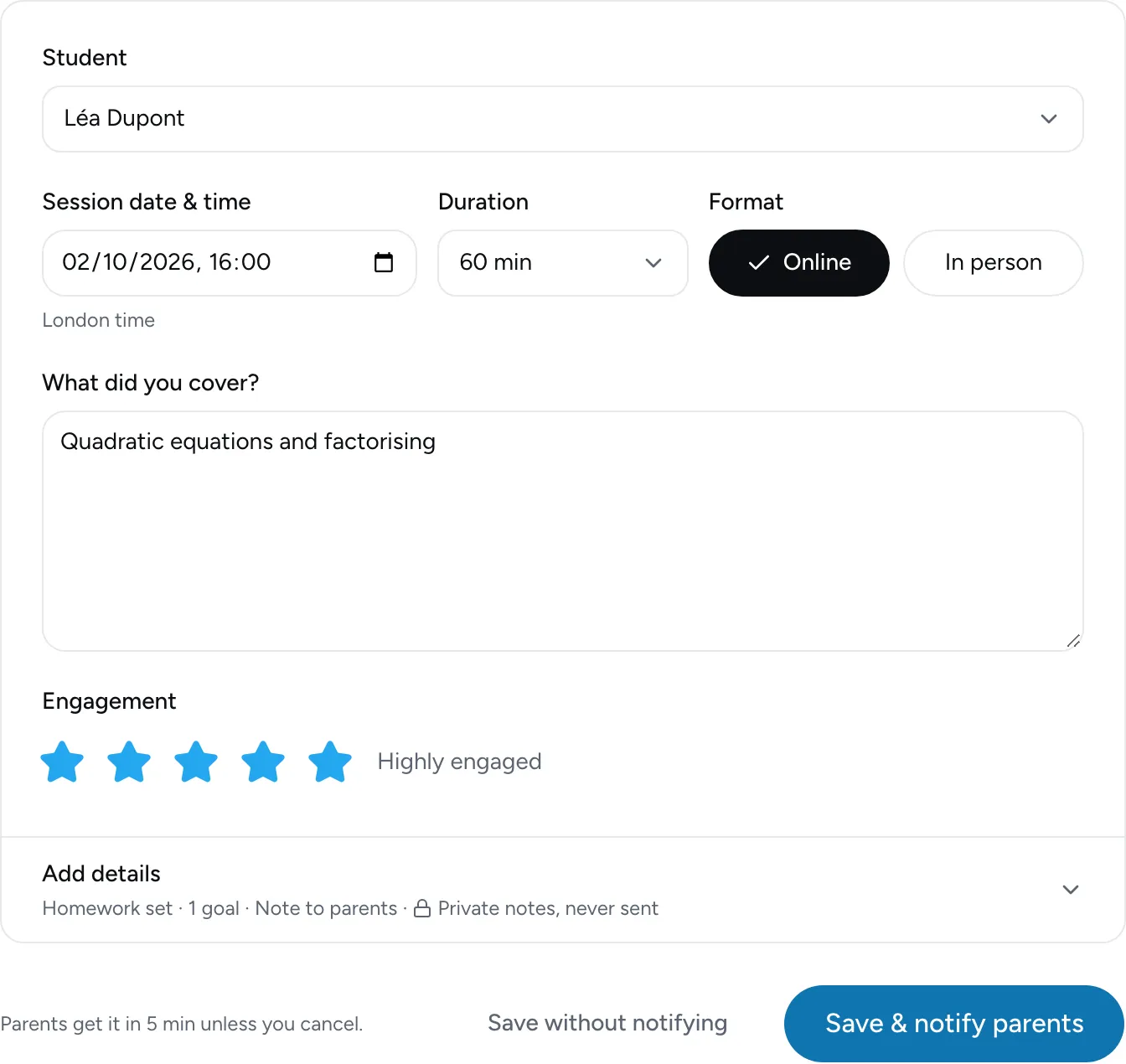
Two minutes after the lesson, while it is fresh. The form has four short steps, and the parent update is written from what you enter.
- Choose Log session from the dashboard or the Sessions page, then pick the student.
- Lesson: what you covered, and how the student engaged on a five-star scale. You can dictate the whole session instead and check the fields it fills.
- Check: when it happened and how long it was, any homework set, and which goals the lesson worked toward.
- Notes: a line for the parent, and private notes that stay with you.
- Preview: exactly what each parent will receive, on their channel and in their time. Choose Save and notify parents, or Save without notifying.
Good to know. Updates go out five minutes after you save. Open the session in that window to cancel or edit, and the corrected version is sent instead.
03
What parents receive
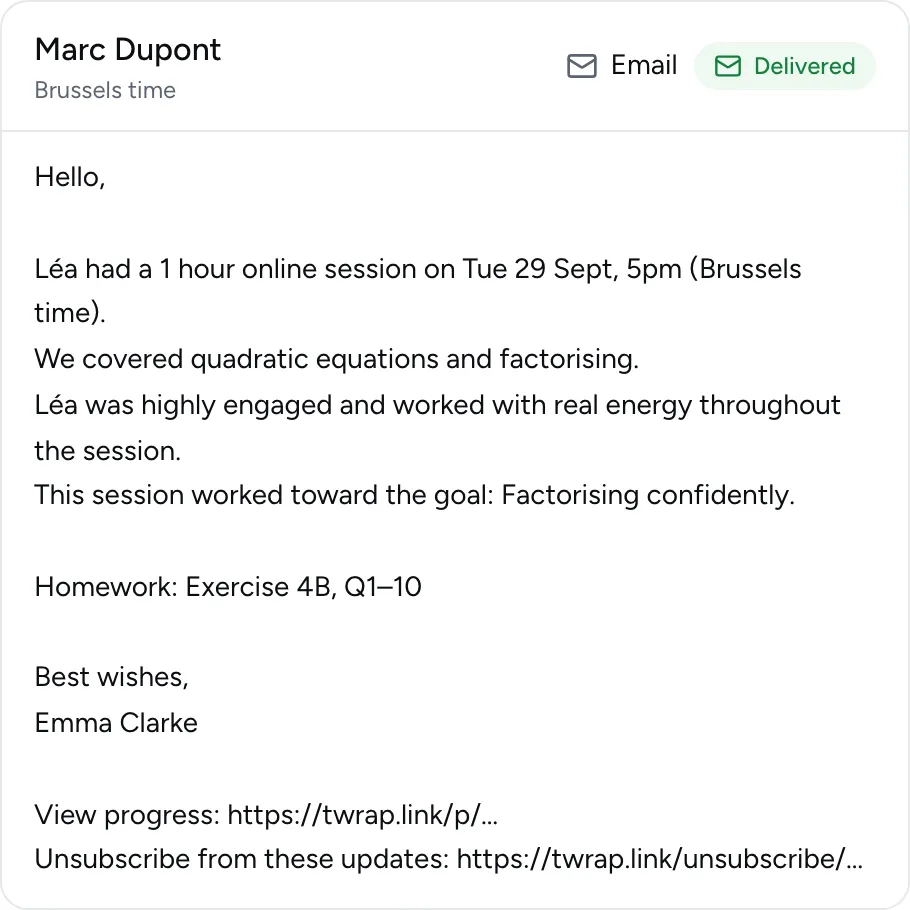
A clear, warm summary built from your notes: when the session was, what was covered, how the student engaged, the homework, and a link to the progress page.
- Email is unlimited on every plan and carries the full summary.
- SMS and WhatsApp are short versions with the link, and use the message credits in your plan.
- When credits run out, or a number cannot be reached, the update falls back to email. Nothing is lost.
- Each session’s page shows every message, its channel and whether it was delivered, with a Resend button if one failed.
Good to know. WhatsApp updates need the parent's consent to receive business messages, and can be switched on in Settings once your templates are approved.
04
Goals and the progress page
A goal is one outcome with a few steps on the way, for example “Pass GCSE maths with a 7”. Every session you link to it records how close the student is.
- On the student’s page choose Add goal. Write the outcome, pick a target date or exam, and add two to five steps from first to last. TutorWrap can draft the steps for you to edit.
- When you log a session, tick the goals it worked toward and set a level: from “with help” to “on their own”. Tick any steps reached.
- Pin evidence to a goal: a photo of work, or a score. Choose whether each piece is shared with parents.
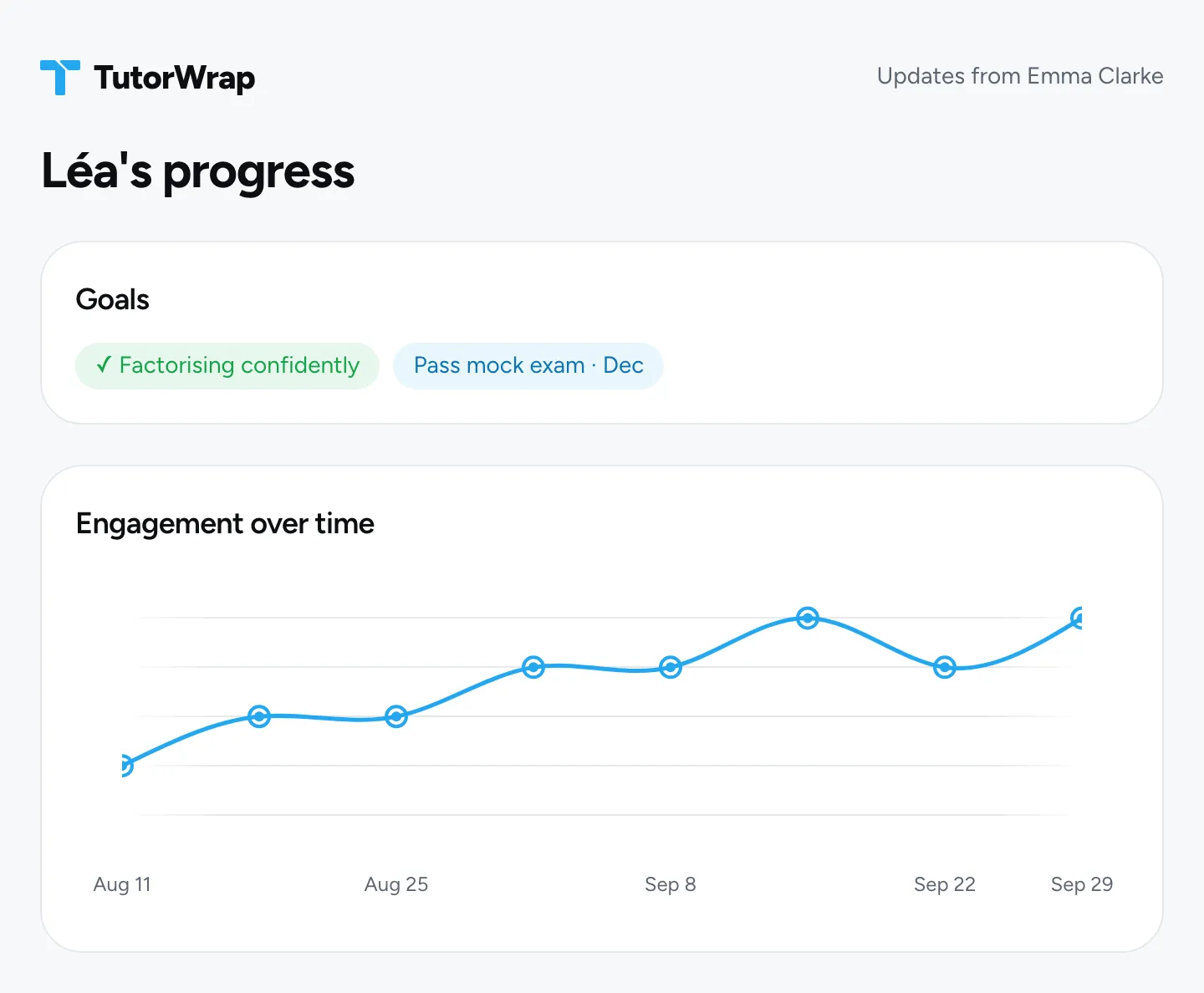
- Parents open the progress page from any update. It shows each goal, the steps reached, engagement over time and the shared evidence, and nothing else.
Good to know. When every step is reached, or the student has been "on their own" for a few sessions, the goal is suggested as achieved. You confirm it; nothing is marked done for you.
05
Weekly reports
Some parents want a summary of the week rather than a message after every lesson. Reports collect the week’s sessions into one update.
- Under Reports, choose how parents hear from you: after every session, a weekly report, or both.
- Templates decide what a report asks you to fill in. Rename sections, change the scale options or hide a section; the saved values stay structured so charts keep working.
- Scoring headings are the things you rate every week, such as confidence or focus. Add one and it appears on every template as a choice or a star rating.
- Write a report from Reports, New report: pick the student and the week, rate the headings, add a few lines, and preview it before it is sent.
Good to know. Sessions in the chosen week attach themselves to the report, so there is nothing to look up.
06
Replies from parents
Parents can text back. A photo of homework, a question, a note about next week: it lands in Replies instead of your personal phone.
- Open Replies to see what is new. Each reply shows who sent it, the student it belongs to and when it arrived.
- A photo can be attached to one of the student’s goals as evidence in one step.
- Dismiss what needs no action. Dismissed replies stay under their own tab.
Good to know. Replies arrive by SMS and WhatsApp. Email replies go to your own inbox as usual.
07
Calendar nudges
Connect the calendar you teach from and TutorWrap reminds you to log each session about fifteen minutes after it ends.
- Go to Settings, Connections, and choose Connect a calendar. Google, Microsoft and iCloud calendars all work.
- Tick the calendars that hold your lessons. Any number of accounts and calendars can be watched.
- After each timed event ends you get a nudge with a link straight to the session form.
Good to know. Only event times and titles are read. Nothing is written to your calendars, and nothing is sent to parents from them.
08
Plans and message credits
You pay in your own currency: USD, GBP, EUR or NGN, priced for each market and never converted.
- Every plan includes unlimited email updates and the parent progress record. Plans differ by how many students you can have and how many message credits come with it each month.
- SMS and WhatsApp updates use one credit each. Credits renew monthly, and you can top up any time from Billing; top-ups never expire while you are subscribed.
- Credit activity on the Billing page shows every credit in and out.
- Change or cancel your plan from Billing at any time. Receipts and invoices are under Update payment details.
Good to know. Over your plan's student limit you get seven days' grace. After that only adding students is paused. Logging sessions and sending updates is never blocked.
09
Refer a tutor
Share your link with a tutor you know. They get half price on their first month, and you earn a free month for every tutor who pays.
- Open Referrals and copy your link, or read out your code: it has no 0 or O, and no 1 or l.
- When they subscribe, their first month is half price and your next month is free.
- Referrals lists everyone who signed up through you and whether they are paying yet.
Good to know. Tutor communities get their own partner code with its own terms. Ask us on the contact page.
Need more help?
Email support and a real person replies within one working day.
Email support